Can you help? If you find this helpful, please consider making a small donation to support human-generated content and keep this site free to all. Thanks! - Dan
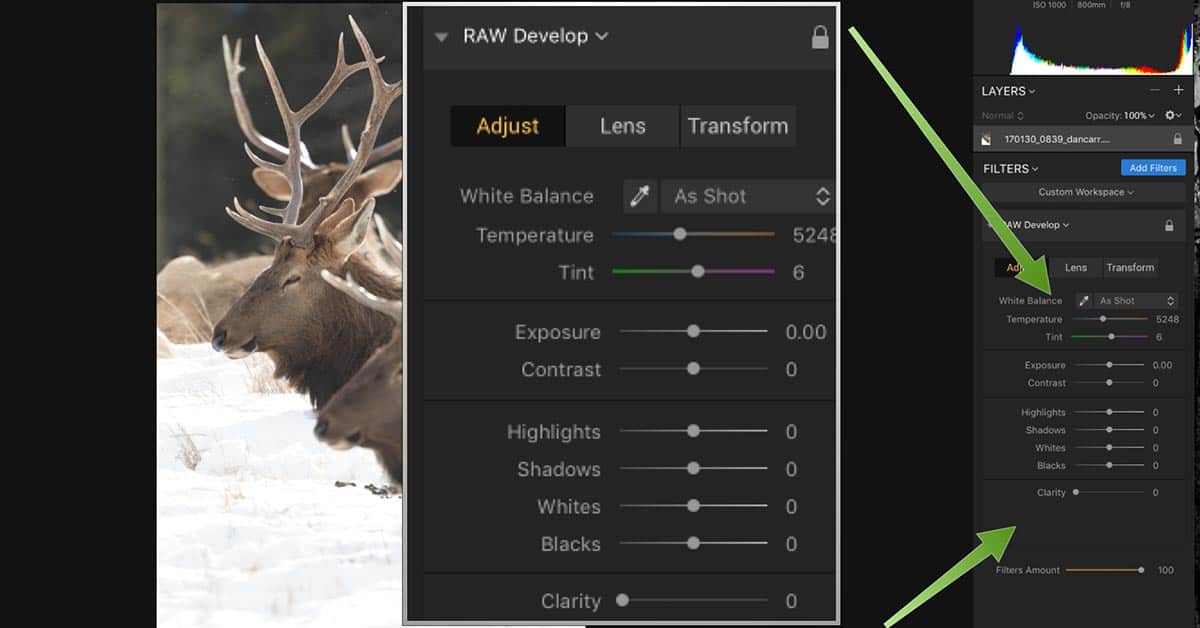
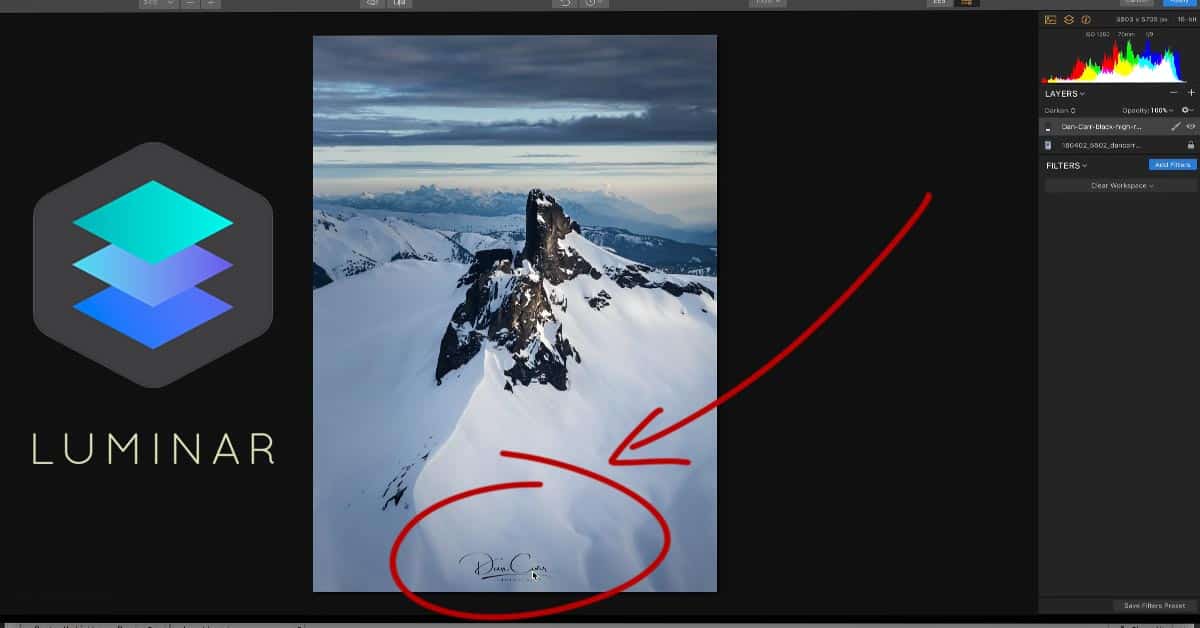
I’ve just started testing out the impressive new Luminar editing software from Mac developers, Macphun. There’s a good reason why Apple have picked these guys for the Best of the Mac App Store for 5 years in a row! Luminar has a lot of powerful features, and allows layer-based editing which is something sorely lacking in Adobe Lightroom. On top of that, Luminar doesn’t require a subscription like the Adobe apps.
Whenever I learn new software I always like to collate all of the keyboard shortcuts so that I can begin to work on a nice fast workflow. Editing photos is a necessity, but I’ll be honest, I’d much rather be with my camera in the field! Learning some shortcuts always speeds things up and gets me back out there quicker.
With that in mind, here’s all the handy Macphun Luminar keyboard shortcuts for you!
Option Key
⌥
Command Key
⌘
Shift Key
⇧
Control Key
Ctrl
Return Key
↵
Alt Key
Alt
General
C
Crop tool
⌘+D
Denoise Tool
⌘+E
Erase Tool
⌘+J
Clone&Stamp tool
⌘+T
Transform Tool
J
Show/hide “hot” and “cold” pixels
R
Radial Mask mode
G
Gradian Mask mode
B
Brush Mode
H
Hand Mode
⇥
Show/hide preset panel and side panel
;
Activate/deactivate split-screen comparison
\
Activate before/after comparison
Luminar Menu
⌘+,
Open Preferences
⌘+H
Hide Luminar
⌘+Q
Quit Luminar
File Menu
⌘+O
Open Image
⌘+W
Clode File
⌘+B
Open Batch Processing Mode
⌘+S
Save File
⌘+⇧+S
Save As
⌘+⇧+F
Show Original File in Finder
⌘+⇧+E
Export Image
⌘+⇧+P
Page Setup
⌘+P
Print
Edit Menu
⌘+Z
Undo
⇧+⌘+Z
Redo
⌘+X
Cut
⌘+C
Copy
⌘+V
Paste
Mask Editing
[
Decrease Brush Radius
]
Increase Brush Radius
⇧+[
Decrease Brush Softness
⇧+]
Increase Brush Softness
X
Switch between Painting/Erasing modes
/
Show current layer mask in red
⌘+I
Invert Layer Mask
View Menu
⌘++
Zoom In
⌘+-
Zoom Out
⌘+1
Original Size
⌘+0
Fit to Screen
J
Show Clipping
I
Hide Image Info
;
Compare
⌘+Ctrl+F
Full Screen Mode
Save 10% On All Macphun Software
To save 10% on Luminar, or any other Macphun software such as Aurora HDR, simply click here and then use the coupon code ShutterMuse10 at the checkout!
If you found this post helpful, please consider supporting a real person delivering human-generated content. In a world full of inaccurate AI-generated garbage, I strive to continue bringing valuable, real-world content. Help me fight the machines with a small donation here.
Professional photographer based in Yukon, Canada, and founder of Shutter Muse. His editorial work has been featured in publications all over the world, and his commercial clients include brands such as Nike, Apple, Adobe and Red Bull.
Excellent resource, Dan! I’m with Macphun and of course am a huge fan of shortcut keys as well. 😉 For your reader’s info, we also have an extensive video gallery that some might find helpful (https://macphun.com/luminar/video-tutorials).








Excellent resource, Dan! I’m with Macphun and of course am a huge fan of shortcut keys as well. 😉 For your reader’s info, we also have an extensive video gallery that some might find helpful (https://macphun.com/luminar/video-tutorials).
Cheers, Kevin (from Macphun)
Thanks for the link!