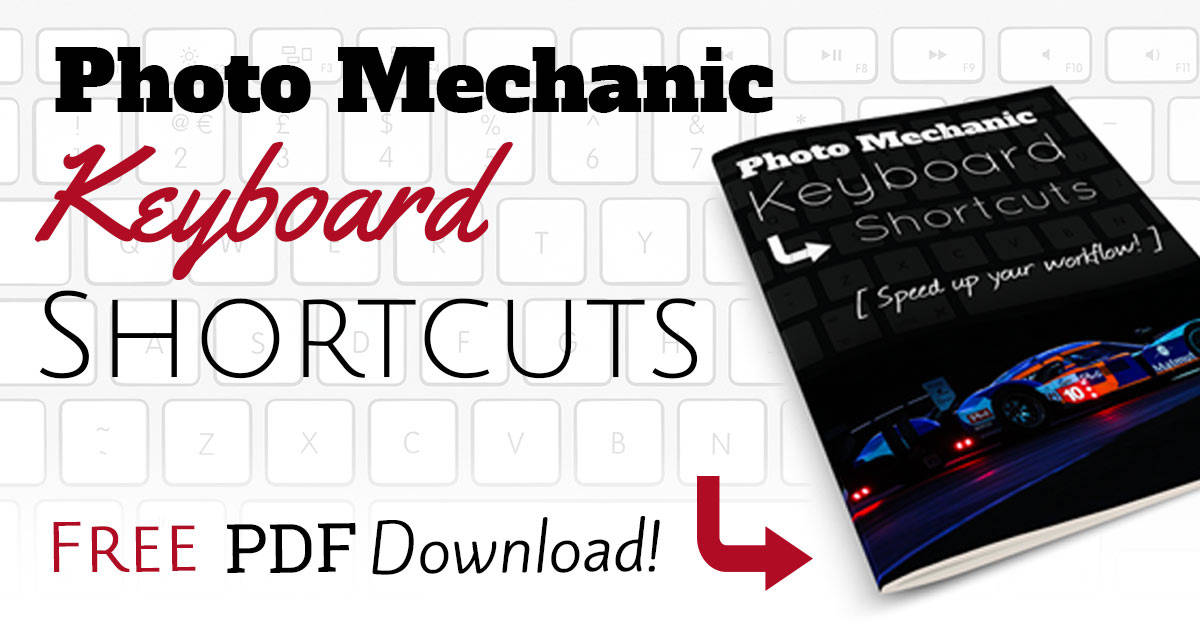
Below you will find a list of the keyboard shortcuts but I also wanted to give you guys something that you can take away, print and easily refer to, so I’ve created an easy-reference PDF that you can print ot store on your smartphone, laptop or tablet. I know what it’s like with shortcuts… we remember the basic ones pretty easily, but after periods of inactivity with specific software we forget a few of the other ones. No need to remember where to look on the internet though with this handy guide!
Download the Mac & PC Lightroom CC Shortcut Guide
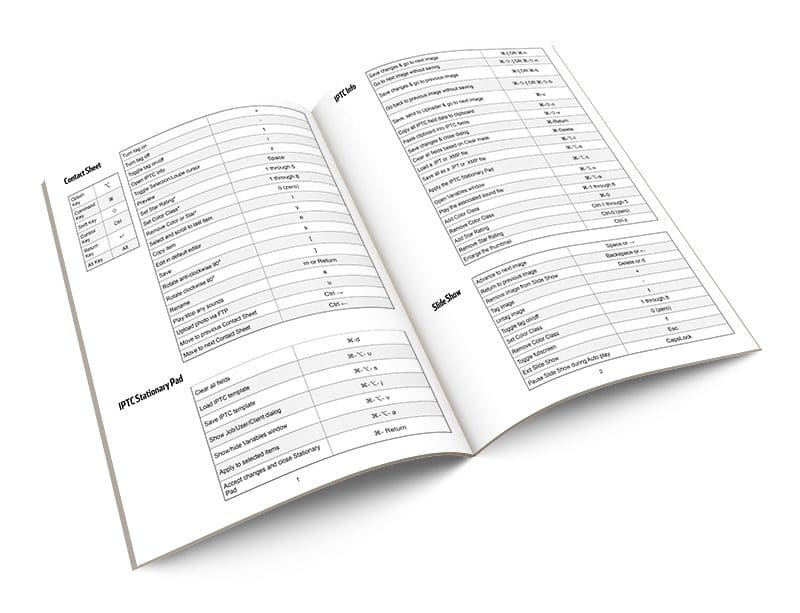
If you want a nice, printable version of this table to keep in your bag, or just on your smartphone, hit the button below.
Bonus Quick List

When you download the complete PDF of Lightroom shortcuts, I’m also going to give you a second download which is my list of 21 essential Lightroom shortcuts. Obviously you can’t memorize all the shortcuts, but if you’re going to memorize just a few of them, these are the ones you need! The quick list is also formatted for printing, so if you want, you can just print it and stick it to the wall by your computer screen.
Keyboard Symbols
| Option Key | ⌥ |
| Command Key | ⌘ |
| Shift Key | ⇧ |
| Control Key | Ctrl |
| Return Key | ↵ |
| Alt Key | Alt |
| Tab | ⇥ |
Adobe Lightroom CC Shortcut List
Working With Panels
| Action | Windows | Mac |
| Show/hide side panels | Tab | Tab |
| Show/hide all panels | ⇧ + Tab | ⇧ + Tab |
| Show/hide toolbar | T | T |
| Show/hide Module Picker | F5 | F5 |
| Show/hide Filmstrip | F6 | F6 |
| Show/hide left panels | F7 | F7 |
| Show/hide right panels | F8 | F8 |
| Toggle solo mode | Alt-click a panel | ⌥-click a panel |
| Open a new panel without closing soloed panel | ⇧-click a panel | ⇧-click a panel |
| Open/close all panels | Ctrl-click a panel | ⌘-click a panel |
| Open/close left panels, top to bottom | Ctrl + ⇧ + 0 – 5 | ⌘ + Control + 0 – 5 |
| Open/close right panels, Library and Develop modules, top to bottom | Ctrl + 0 – 9 | ⌘ + 0 – 9 |
| Open/close right panels, Slideshow, Print, and Web modules, top to bottom | Ctrl + 1 – 7 | ⌘ + 1 – 7 |
Navigating Modules
| Action | Windows | Mac |
| Go to Library module | Ctrl + Alt + 1 | ⌘ + ⌥ + 1 |
| Go to Develop module | Ctrl + Alt + 2 | ⌘ + ⌥ + 2 |
| Go to Slideshow module | Ctrl + Alt + 3 | ⌘ + ⌥ + 3 |
| Go to Print module | Ctrl + Alt + 4 | ⌘ + ⌥ + 4 |
| Go to Web module | Ctrl + Alt + 5 | ⌘ + ⌥ + 5 |
| Go back / go forward | Ctrl + Alt + Left Arrow / Ctrl + Alt + RIght Arrow | ⌘ + ⌥ + Left Arrow / ⌘ + ⌥ + Right Arrow |
| Go back to previous module | Ctrl + Alt + Up Arrow | ⌘ + ⌥ + Up Arrow |
Changing View and Screen Modes
| Action | Windows | Mac |
| Enter Library Loupe view | E | E |
| Enter Library Grid view | G | G |
| Enter Library Compare view | C | C |
| Enter Library Survey view | N | N |
| Open selected photo in the Develop module | D | D |
| Cycle forward / backward through Lights Out modes | L / ⇧ + L | L / ⇧ + L |
| Toggle Lights Dim mode | Ctrl + ⇧ + L | ⌘ + ⇧ + L |
| Cycle screen modes | F | F |
| Previous screen mode | ⇧ + F | |
| Switch between Normal and full-screen, hide panels | Ctrl + ⇧ + F | ⌘ + ⇧ + F |
| Go to Normal screen mode | Ctrl + Alt + F | ⌘ + ⌥ + F |
| Cycle info overlay | I | I |
| Show/hide info overlay | Ctrl + I | ⌘ + I |
View Modes for Secondary Window
Essentially here you just add the shift key (⇧) to the previous section to make them apply to a secondary screen.
| Action | Windows | Mac |
| Open secondary window | F11 | ⌘ + F11 |
| Enter Grid view | ⇧ + G | ⇧ + G |
| Enter normal Loupe view | ⇧ + E | ⇧ + E |
| Enter locked Loupe view | Ctrl + ⇧ + Enter | ⌘ + ⇧ + Return |
| Enter Compare view | ⇧ + C | ⇧ + C |
| Enter Survey view | ⇧ + N | ⇧ + N |
| Enter Slideshow view | Ctrl + Alt + ⇧ + Enter | ⌘ + ⌥ + ⇧ + Return |
| Enter full-screen mode (requires a second monitor) | ⇧ + F11 | ⌘ + ⇧ + F11 |
| Show/hide Filter bar | ⇧ + | ⇧ + |
| Zoom in / zoom out | Ctrl + ⇧ + = / Ctrl + ⇧ – | ⌘ + ⇧ + = / ⌘ + ⇧ + – |
Managing Photos and Catalogs
| Action | Windows | Mac |
| Import photos from disk | Ctrl + ⇧ + I | ⌘ + ⇧ + I |
| Open catalog | Ctrl + O | ⌘ +⇧ + O |
| Open Preferences | Ctrl + , (comma) | ⌘ + , (comma) |
| Open Catalog Settings | Ctrl + Alt + , (comma) | ⌘ + ⌥ + , (comma) |
| Create new subfolder (segmented tethered capture) | Ctrl + ⇧ + T | ⌘ +⇧ + T |
| Hide/show tether capture bar | Ctrl + T | ⌘ + T |
| Create a new folder in the Library module | Ctrl + ⇧ + N | ⌘ + ⇧ + N |
| Create virtual copy (Library and Develop module only) | Ctrl + ‘ (apostrophe) | ⌘ + ‘ (apostrophe) |
| Show in Explorer/Finder (Library and Develop module only) | Ctrl + R | ⌘ + R |
| Go to next/previous photo in the Filmstrip | Right Arrow/Left Arrow | Right Arrow/Left Arrow |
| Select multiple folders or collections (in Library, Slideshow, Print, and Web modules) | ⇧-click or Ctrl-click | ⇧-click or ⌘-click |
| Rename photo (in Library module) | F2 | F2 |
| Delete selected photo(s) | Backspace or Delete | Delete |
| Remove selected photo(s) from catalog | Alt + Backspace | ⌥ + Delete |
| Delete selected photo(s) and move to Recycling Bin (Windows) or Trash (Mac) | Ctrl + Alt + ⇧ + Backspace | ⌘ + ⌥ + ⇧ + Delete |
| Delete rejected photo(s) | Ctrl + Backspace | ⌘ + Delete |
| Edit in Photoshop | Ctrl + E | ⌘ + E |
| Open in other editor | Ctrl + Alt + E | ⌘ + ⌥ + E |
| Export selected photo(s) | Ctrl + ⇧ + E | ⌘ + ⇧ + E |
| Export with previous settings | Ctrl + Alt + ⇧ + E | ⌘ + ⌥ + ⇧ + E |
| Open plug-in manager | Ctrl + Alt + ⇧ + , (comma) | ⌘ + ⌥ + ⇧ + , (comma) |
| Print selected photo | Ctrl + P | ⌘ + P |
| Open Page Setup dialog box | Ctrl + ⇧ + P | ⌘ + ⇧ + P |
Comparing Photos in Library
| Action | Windows | Mac |
| Switch to Loupe view | E or Enter | E or Return |
| Switch to Grid view | G or Esc | G or Esc |
| Switch to Compare view | C | C |
| Switch to Survey view | N | N |
| Switch from Grid to Loupe view | Spacebar or E | Spacebar or E |
| Swap select and candidate photos in Compare view | Down Arrow | Down Arrow |
| Make next photos select and candidate in Compare view | Up Arrow | Up Arrow |
| Toggle Zoom view | Z | Z |
| Zoom in / zoom out in Loupe view | Ctrl + = / Ctrl + – | ⌘ + = / ⌘ + – |
| Scroll up/down zoomed photo in Loupe view (also works in Develop and Web modules) | Page Up / Page Down on full-size keyboard | Page Up / Page Down on full-size keyboard |
| Go to beginning/end of Grid view | Home / End | Home / End |
| Play impromptu slide show | Ctrl + Enter | ⌘ + Return |
| Rotate photo right (clockwise) | Ctrl + ] | ⌘ + ] |
| Rotate photo left (counterclockwise) | Ctrl + [ | ⌘ + [ |
| Increase/decrease Grid thumbnail size | = / – | = / – |
| Scroll up/down Grid thumbnails | Page Up / Page Down on full-size keyboard | Page Up / Page Down on full-size keyboard |
| Toggle cell extras | Ctrl + ⇧ + H | ⌘ + ⇧ + H |
| Show/hide badges | Ctrl + Alt + ⇧ + H | ⌘ + ⌥ + ⇧ + H |
| Cycle Grid views | J | J |
| Open Library view ⌥s | Ctrl + J | ⌘ + J |
| Select multiple discrete photos | Ctrl-click | ⌘-click |
| Select multiple contiguous photos | ⇧-click | ⇧-click |
| Select all photos | Ctrl + A | ⌘ + A |
| Deselect all photos | Ctrl + D | ⌘ + D or ⌘ + ⇧ + A |
| Select only active photo | Ctrl + ⇧ + D | ⌘ + ⇧ + D |
| Deselect active photo | / | / |
| Add previous/next photo to selection | ⇧ + Left/Right Arrow | ⇧ + Left/Right Arrow |
| Select flagged photos | Ctrl + Alt + A | ⌘ + ⌥ + A |
| Deselect unflagged photos | Ctrl + Alt + ⇧ + D | ⌘ + ⌥ + ⇧ + D |
| Group into stack | Ctrl + G | ⌘ + G |
| Unstack | Ctrl + ⇧ + G | ⌘ + ⇧ + G |
| Toggle stack | S | S |
| Move to top of stack | ⇧ + S | ⇧ + S |
| Move up in stack | ⇧ + [ | ⇧ + [ |
| Move down in stack | ⇧ + ] | ⇧ + ] |
Rating and Filtering Photos
| Action | Windows | Mac |
| Set star rating | 1 – 5 | 1 – 5 |
| Set star rating and go to next photo | ⇧ + 1 – 5 | ⇧ + 1 – 5 |
| Remove star rating | 0 | 0 |
| Remove star rating and go to next photo | ⇧ + 0 | ⇧ + 0 |
| Increase/decrease rating by one star | ] / [ | ] / [ |
| Assign a red label | 6 | 6 |
| Assign a yellow label | 7 | 7 |
| Assign a green label | 8 | 8 |
| Assign a blue label | 9 | 9 |
| Assign a color label and go to next photo | ⇧ + 6 – 9 | ⇧ + 6 – 9 |
| Flag photo as a pick | P | P |
| Flag photo as a pick and go to next photo | ⇧ + P | ⇧ + P |
| Flag photo as a reject | X | X |
| Flag photo as a reject and go to next photo | ⇧ + X | ⇧ + X |
| Unflag photo | U | U |
| Unflag photo and go to next photo | ⇧ + U | ⇧ + U |
| Increase/decrease flag status | Ctrl + Up Arrow / Ctrl + Down Arrow | ⌘ + Up Arrow / ⌘ + Down Arrow |
| Cycle flag settings | ‘ (back quote) | ‘ (back quote) |
| Refine photos | Ctrl + Alt + R | ⌘ + ⌥ + R |
| Show/hide Library Filter bar | ||
| Open multiple filters in the Filter bar | ⇧-click filter labels | ⇧-click filter labels |
| Toggle filters on/off | Ctrl + L | ⌘ + L |
| Find photo in the Library module | Ctrl + F | ⌘ + F |
Working With Collections
| Action | Windows | Mac |
| Create a new collection in the Library module | Ctrl + N | ⌘ + N |
| Add to Quick Collection | B | B |
| Add to Quick Collection and go to next photo | ⇧ + B | ⇧ + B |
| Show Quick Collection | Ctrl + B | ⌘ + B |
| Save Quick Collection | Ctrl + Alt + B | ⌘ + ⌥ + B |
| Clear Quick Collection | Ctrl + ⇧ + B | ⌘ + ⇧ + B |
| Set as target collection | Ctrl + Alt + ⇧ + B | ⌘ + ⌥ + ⇧ + B |
Working With Metadata and Keywords in Library
| Action | Windows | Mac |
| Add keywords | Ctrl + K | ⌘ + K |
| Edit keywords | Ctrl + ⇧ + K | ⌘ + ⇧ + K |
| Set a keyword shortcut | Ctrl + Alt + ⇧ + K | ⌘ + ⌥ + ⇧ + K |
| Add/remove keyword shortcut from selected photo | ⇧ + K | ⇧ + K |
| Enable painting | Ctrl + Alt + K | ⌘ + ⌥ + K |
| Add a keyword from a keyword set to selected photo | Alt + 1-9 | ⌥ + 1-9 |
| Cycle forward / backward through keyword sets | Alt + 0 / Alt + ⇧ + 0 | ⌥ + 0 / ⌥ + ⇧ + 0 |
| Copy/paste metadata | Ctrl + Alt + ⇧ + C / Ctrl + Alt + ⇧ + V | ⌘ + ⌥ + ⇧ + C / ⌘ + ⌥ + ⇧ + V |
| Save metadata to file | Ctrl + S | ⌘ + S |
| Open Spelling dialog box | ⌘ + : | |
| Check spelling | ⌘ + ; | |
| Open Character palette | ⌘ + ⌥ + T |
Develop Module
| Action | Windows | Mac |
| Convert to grayscale | V | V |
| Auto tone | Ctrl + U | ⌘ + U |
| Auto white balance | Ctrl + ⇧ + U | ⌘ + ⇧ + U |
| Edit in Photoshop | Ctrl + E | ⌘ + E |
| Copy/paste Develop settings | Ctrl + ⇧ + C / Ctrl + ⇧ + V | ⌘ + ⇧ + C / ⌘ + ⇧ + V |
| Paste settings from previous photo | Ctrl + Alt + V | ⌘ + ⌥ + V |
| Copy After settings to Before | Ctrl + Alt + ⇧ + Left Arrow | ⌘ + ⌥ + ⇧ + Left Arrow |
| Copy Before settings to After | Ctrl + Alt + ⇧ + Right Arrow | ⌘ + ⌥ + ⇧ + Right Arrow |
| Swap Before and After settings | Ctrl + Alt + ⇧ + Up Arrow | ⌘ + ⌥ + ⇧ + Up Arrow |
| Increase/decrease selected slider in small increments | Up Arrow / Down Arrow or + / – | Up Arrow / Down Arrow or + / – |
| Increase/decrease selected slider in larger increments | ⇧ + Up Arrow / ⇧ + Down Arrow or ⇧ + + / ⇧ + – | ⇧ + Up Arrow / ⇧ + Down Arrow or ⇧ + + / ⇧ + – |
| Cycle through Basic panel settings (forward/backward) | . (period) / , (comma) | . (period) / , (comma) |
| Reset a slider | Double-click slider name | Double-click slider name |
| Reset a group of sliders | Alt-click group name | ⌥-click group name |
| Reset all settings | Ctrl + ⇧ + R | ⌘ + ⇧ + R |
| Sync settings | Ctrl + ⇧ + S | ⌘ + ⇧ + S |
| Sync settings bypassing Synchronize Settings dialog box | Ctrl + Alt + S | ⌘ + ⌥ + S |
| Toggle Auto Sync | Ctrl-click Sync button | ⌘-click Sync button |
| Enable Auto Sync | Ctrl + Alt + ⇧ + A | ⌘ + ⌥ + ⇧ + A |
| Match total exposures | Ctrl + Alt + ⇧ + M | ⌘ + ⌥ + ⇧ + M |
| Select White Balance tool (from any module) | W | W |
| Select the Crop tool (from any module) | R | R |
| Constrain aspect ratio when Crop tool is selected | A | A |
| Crop to same aspect ratio as previous crop | ⇧ + A | ⇧ + A |
| Crop from center of photo | Alt-drag | ⌥-drag |
| Cycle Crop grid overlay | O | O |
| Cycle Crop grid overlay orientation | ⇧ + O | ⇧ + O |
| Switch crop between portrait and landscape orientation | X | X |
| Reset crop | Ctrl + Alt + R | ⌘ + ⌥ + R |
| Select the Guided Upright tool (also works in the Library module when a photo is selected) | ⇧ + T | ⇧ + T |
| Select the Spot Removal tool | Q | Q |
| Toggle Brush between Clone and Heal modes when Spot Removal tool is selected | ⇧ + T | ⇧ + T |
| Select the Adjustment Brush tool (from any module) | K | K |
| Select the Graduated Filter tool | M | M |
| Toggle Mask between Edit and Brush modes when the Graduated Filter or Radial Filter is selected | ⇧ + T | ⇧ + T |
| Increase/decrease brush size | ] / [ | ] / [ |
| Increase/decrease brush feathering | ⇧ + ] / ⇧ + [ | ⇧ + ] / ⇧ + [ |
| Switch between local adjustment brush A and B | / | / |
| Temporarily switch from brush A or B to Eraser | Alt-drag | ⌥-drag |
| Paint a horizontal or vertical line | ⇧-drag | ⇧-drag |
| Increase/decrease Amount | Drag adjustment pin right/left | Drag adjustment pin right/left |
| Show/hide local adjustment pin | H | H |
| Show/hide local adjustment mask overlay | O | O |
| Cycle local adjustment mask overlay colors | ⇧ + O | ⇧ + O |
| Select Targeted Adjustment tool to apply a Tone Curve adjustment | Ctrl + Alt + ⇧ + T | ⌘ + ⌥ + ⇧ + T |
| Select Targeted Adjustment tool to apply a Hue adjustment | Ctrl + Alt + ⇧ + H | ⌘ + ⌥ + ⇧ + H |
| Select Targeted Adjustment tool to apply a Saturation adjustment | Ctrl + Alt + ⇧ + S | ⌘ + ⌥ + ⇧ + S |
| Select Targeted Adjustment tool to apply a Luminance adjustment | Ctrl + Alt + ⇧ + L | ⌘ + ⌥ + ⇧ + L |
| Select Targeted Adjustment tool to apply a Grayscale Mix adjustment | Ctrl + Alt + ⇧ + G | ⌘ + ⌥ + ⇧ + G |
| Deselect Targeted Adjustment tool | Ctrl + Alt + ⇧ + N | ⌘ + ⌥ + ⇧ + N |
| Show clipping | J | J |
| Rotate photo right (clockwise) | Ctrl + ] | ⌘ + ] |
| Rotate photo left (counterclockwise) | Ctrl + [ | ⌘ + [ |
| Toggle between Loupe and 1:1 Zoom preview | Spacebar or Z | Spacebar or Z |
| Zoom in / zoom out | Ctrl + = / Ctrl + – | ⌘ + = / ⌘ + – |
| Play impromptu slide show | Ctrl + Enter | ⌘ + Return |
| View Before and After left/right | Y | Y |
| View Before and After top/bottom | Alt + Y | ⌥ + Y |
| View Before and After in a split screen | ⇧ + Y | ⇧ + Y |
| View Before only | ||
| Create a new snapshot | Ctrl + N | ⌘ + N |
| Create a new preset | Ctrl + ⇧ + N | ⌘ + ⇧ + N |
| Create a new preset folder | Ctrl + Alt + N | ⌘ + ⌥ + N |
| Open Develop view ⌥s | Ctrl + J | ⌘ + J |
Slideshow Module
| Action | Windows | Mac |
| Play slide show | Enter | Return |
| Play impromptu slide show | Ctrl + Enter | ⌘ + Return |
| Pause slide show | Spacebar | Spacebar |
| Preview slide show | Alt + Enter | ⌥ + Return |
| End slide show | Esc | Esc |
| Go to next slide | Right Arrow | Right Arrow |
| Go to previous slide | Left Arrow | Left Arrow |
| Rotate photo right (clockwise) | Ctrl + ] | ⌘ + ] |
| Rotate photo left (counterclockwise) | Ctrl + [ | ⌘ + [ |
| Show/hide guides | Ctrl + ⇧ + H | ⌘ + ⇧ + H |
| Export PDF slide show | Ctrl + J | ⌘ + J |
| Export JPEG slide show | Ctrl + ⇧ + J | ⌘ + ⇧ + J |
| Export video slide show | Ctrl + Alt + J | ⌘ + ⌥ + J |
| Create a new slide show template | Ctrl + N | ⌘ + N |
| Create a new slide show template folder | Ctrl + ⇧ + N | ⌘ + ⇧ + N |
| Save slide show settings | Ctrl + S | ⌘ + S |
Print Module
| Action | Windows | Mac |
| Ctrl + P | ⌘ + P | |
| Print one copy | Ctrl + Alt + P | ⌘ + ⌥ + P |
| Open Page Setup dialog box | Ctrl + ⇧ + P | ⌘ + ⇧ + P |
| Open Print Settings dialog box | Ctrl + Alt + ⇧ + P | ⌘ + ⌥ + ⇧ + P |
| Go to first page | Ctrl + ⇧ + Left Arrow | ⌘ + ⇧ + Left Arrow |
| Go to last page | Ctrl + ⇧ + Right Arrow | ⌘ + ⇧ + Right Arrow |
| Go to previous page | Ctrl + Left Arrow | ⌘ + Left Arrow |
| Go to next page | Ctrl + Right Arrow | ⌘ + Right Arrow |
| Show/hide guides | Ctrl + ⇧ + H | ⌘ + ⇧ + H |
| Show/hide rulers | Ctrl + R | ⌘ + R |
| Show/hide page bleed | Ctrl + ⇧ + J | ⌘ + ⇧ + J |
| Show/hide margins and gutters | Ctrl + ⇧ + M | ⌘ + ⇧ + M |
| Show/hide image cells | Ctrl + ⇧ + K | ⌘ + ⇧ + K |
| Show/hide dimensions | Ctrl + ⇧ + U | ⌘ + ⇧ + U |
| Play impromptu slide show | Ctrl + Enter | ⌘ + Return |
| Rotate photo right (clockwise) | Ctrl + ] | ⌘ + ] |
| Rotate photo left (counterclockwise) | Ctrl + [ | ⌘ + [ |
| Create a new print template | Ctrl + N | ⌘ + N |
| Create a new print template folder | Ctrl + ⇧ + N | ⌘ + ⇧ + N |
| Save print settings | Ctrl + S | ⌘ + S |
Web Module
| Action | Windows | Mac |
| Reload web gallery | Ctrl + R | ⌘ + R |
| Preview in browser | Ctrl + Alt + P | ⌘ + ⌥ + P |
| Play impromptu slide show | Ctrl + Enter | ⌘ + Return |
| Export web gallery | Ctrl + J | ⌘ + J |
| Create a new web gallery template | Ctrl + N | ⌘ + N |
| Create a new web gallery template folder | Ctrl + ⇧ + N | ⌘ + ⇧ + N |
| Save web gallery settings | Ctrl + S | ⌘ + S |
Help
| Action | Windows | Mac |
| Display current module shortcuts | Ctrl + / | ⌘ + / |
| Hide current module shortcuts | Click | Click |
| Go to current module Help | Ctrl + Alt + / | ⌘ + ⌥ + ⇧ + / |
| Open Community Help | F1 | F1 |